 YouTip
Eclipse Running Program
## Running Java Programs in Eclipse
In the Eclipse IDE, running a Java application is a straightforward process. Eclipse provides multiple ways to execute your code, ranging from graphical context menus to efficient keyboard shortcuts.
This tutorial covers the different methods to run a Java program, manage run configurations, and quickly re-run previously executed applications.
---
## Methods to Run a Java Program
To run a Java program in Eclipse, the class you want to execute must contain a standard `main` method:
```java
public static void main(String[] args) {
// Your code here
}
```
### Method 1: Using the Package Explorer Context Menu
The **Package Explorer** view is the most common place to initiate a program run.
1. Locate the Java file containing the `main` method in the **Package Explorer** (usually on the left side of the IDE).
2. Right-click on the Java class file.
3. Navigate to **Run As** > **Java Application**.
Eclipse will compile the file (if auto-build is enabled) and execute the program, displaying the output in the **Console** view at the bottom of the screen.
---
### Method 2: Using Keyboard Shortcuts
For faster development, you can trigger the execution using keyboard shortcuts:
* **Run Current File:** Select the class containing the `main` method in the Package Explorer or open it in the editor, then press:
* **Alt + Shift + X, J** (Press `Alt + Shift + X`, release, and then press `J`)
---
## Managing Run Configurations
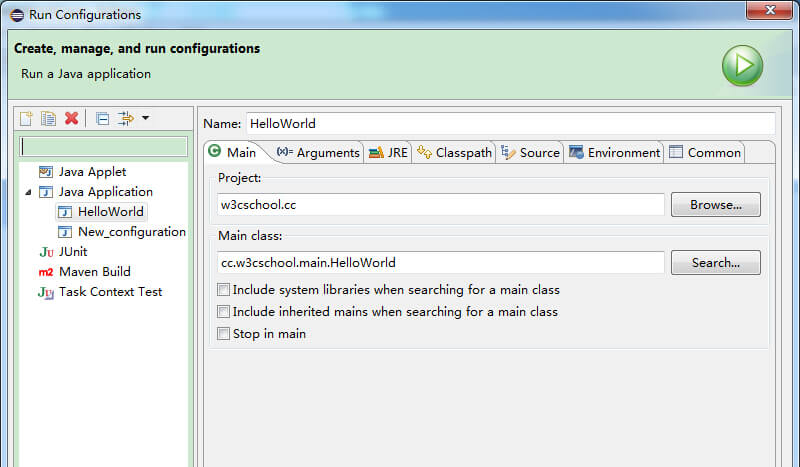
When you run a Java application using the methods above, Eclipse automatically creates a **Run Configuration** for it. Run Configurations allow you to specify JVM arguments, program arguments, environment variables, and the target JRE.
### Creating or Modifying a Run Configuration
If you need to customize how your application starts:
1. Click on the **Run** menu in the top menu bar.
2. Select **Run Configurations...**.
3. In the dialog box, select **Java Application** from the left-hand tree view to see existing configurations, or double-click it to create a new one.
4. Configure your project name, main class, arguments, and classpath.
5. Click **Apply** and then **Run**.
---
## Re-running the Previous Application
Once an application has been executed at least once, you do not need to navigate back to the file to run it again.
### Method 1: Using the Run Menu or Toolbar
* Click the green **Run** button (play icon) on the main toolbar.
* Alternatively, go to the **Run** menu and select the **Run** option (or select from the history dropdown next to the green Run button).

### Method 2: Quick Rerun Shortcut
To instantly relaunch the last executed application, use the following global shortcut:
* **Ctrl + F11** (Windows/Linux) or **Command + F11** (macOS)
---
## Summary of Key Shortcuts
| Action | Shortcut (Windows/Linux) | Shortcut (macOS) |
| :--- | :--- | :--- |
| **Run as Java Application** | `Alt + Shift + X, J` | `Option + Command + X, J` |
| **Rerun Last Launched Program** | `Ctrl + F11` | `Command + F11` |